
Automation allows teams to manage high-volume interactions without missing opportunities or sacrificing detail. In our messaging pilot, we recognized that one size does not fit all when creating an automation, which is why we’ve engineered the system to offer users two paths. This powerful update moves beyond basic event linking, giving you the ability to configure your automations in ways that precisely match your unique workflow needs – whether that’s hands-off, continuous logging or immediate, context-driven action.
Two Paths in Creating an Automation
We designed the messaging pilot’s automation to allow users to choose between two paths: automations that fire every time something happens and automations that fire with the push of a button.
Path One: Fires Every Time Something Happens
Most platforms that offer the ability to integrate will typically offer the first path. In our pilot, we offer a wide range of events that you can use as triggers in your automations.
- Conversation Events
- New conversation started
- Conversation archived
- Conversation assigned to user
- Message Events
- New message sent or received
- Outbound message sent
- Message delivery confirmed
- Note Events
- Internal note added to conversation
- Contact Events
- Contact opted out of messages
- Contact opted back in
- Phone Number Events
- Phone number created
- Phone number updated
- Web Chat Events
- User opened web chat widget
- User started web chat verification
- SMS Events
- SMS verification initiated for web chat
- Each time a conversation is archived, send a note into the CRM with a link back to the conversation for record-keeping.
- Update contact records with their opt-out status to keep systems in sync.
- Send a notification when a new conversation has started.
Path Two: Fires At The Push Of A Button
This path really has our team excited. We’ve tried several different web chat and messaging tools over the years and this has been absent from every single one. At best, a native integration could let you press a button to send data into that tool, but it could not be configured. Or, you could take the first path, pushing all events and then trying to filter down the information but it never quite covered all edge cases and very quickly would become overly complicated.
In our pilot, when a user presses the button to forward a message to an automation, they see all automations available to them. This empowers users to act on what is happening in the conversation while also ensuring that when they do so, no detail or step is missed. Since SMS and web chat in particular are managed by all customer-facing roles, the possibilities are endless and custom to your organization’s needs. For example:
- Escalate a complicated technical issue to Engineering
- Send a review request from an external tool after a successful interaction
- Signal for help when a customer becomes frustrated and wants to speak with a supervisor
- Create a sales deal in your CRM when it’s time to create a proposal (this is the one we will cover today!)
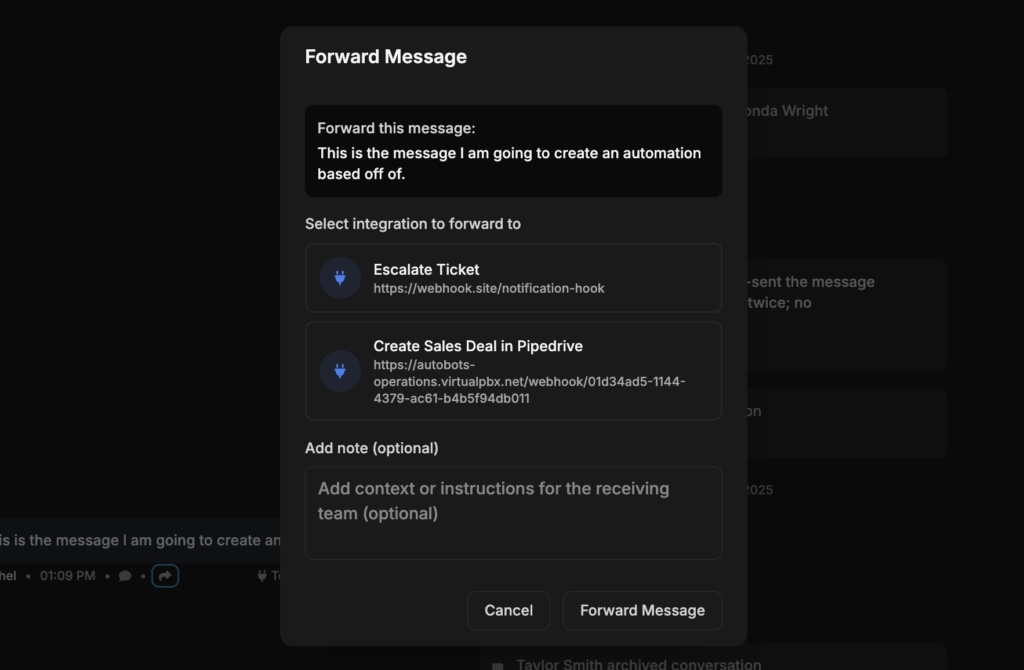
"Push a Button" Example: Creating an Automation from a Forwarded Message
Save for a few blurred out customer details, we created a raw, unvarnished how-to in our own messaging pilot account that’s currently powering web chat here on virtualpbx.com. In this example, we wanted to give our sales team a way to create deals in our CRM at the press of a button so that they could manage them with the rest of their Pipeline. While your use case may vary, this how-to covers all the basic steps as well as a review of available data sent from our pilot:
Have you joined the pilot yet?
No??! The time to get on the list while this is still a pilot is running out! Our first waitlist customers will be granted access this month and have the full attention of our pilot team to ensure that our onboarding process as well as the application itself are battle-tested before our full launch in 2026. Head over to virtualtext.com to join the waitlist today!